> For the complete documentation index, see [llms.txt](https://help.directcloud.net/llms.txt). Markdown versions of documentation pages are available by appending `.md` to page URLs; this page is available as [Markdown](https://help.directcloud.net/user_manual/file_management/irm_unlock.md).
# 사용자 페이지에서 파일의 보안문서 설정을 해제하는 방법
### 개요
DirectCloud의 유료 옵션인 DirectCloud-SHIELD IRM을 계약하신 경우, IRM(Information Rights Management)을 이용하여 의도치 않은 파일 반출로 인한 정보 유출을 방지할 수 있습니다.\
DirectCloud-SHIELD IRM이 활성화된 폴더에서는, 관리자가 설정한 보안 문서 판정 기준에 해당할 경우 외부로 반출되는 시점에 파일이 암호화됩니다.\
이 매뉴얼 에서는 DirectCloud-SHIELD IRM이 활성화된 폴더에서 외부 반출 시 암호화되는 파일 설정을 해제하는 방법을 설명합니다.
### 제한·보충사항
* 파일의 보안등급 라벨은 DirectCloud의 유료 옵션인 DirectCloud-SHIELD IRM을 계약한 경우에만 표시됩니다.\
또한 파일의 보안등급 라벨은 Web 브라우저에서만 표시됩니다.
* DirectCloud-SHIELD IRM이 활성화된 폴더에 보안 문서 판정 기준에 해당하는 파일이 포함된 폴더를 업로드하면, [업로드한 파일을 판정 기준에 따라 보안하는 방법](https://help.directcloud.net/admin_manual/directcloud-shield-irm/undefined-3)에 따라 업로드된 파일에 자동으로 보안등급 라벨이 적용됩니다.\
또한 파일이 Storage 외부로 반출될 경우 암호화가 적용됩니다.
* [보안문서 설정을 관리자 페이지에서 해제하는 방법](https://help.directcloud.net/admin_manual/directcloud-shield-irm/undefined-8)을 통해, 관리자가 암호화 설정을 해제할 수도 있습니다.
* 본 매뉴얼 또는 [보안문서 설정을 관리자 페이지에서 해제하는 방법](https://help.directcloud.net/admin_manual/directcloud-shield-irm/undefined-8) 또는 사용자 페이지에서 해제하는 방법을 통해 관리자가 설정한 보안수준 정의를 해제하면 보안등급 라벨이 제거되고 .irm 확장자가 표시되지 않게 됩니다.\
보안등급 라벨을 변경하려는 경우, [사용자 페이지에서 파일의 보안등급을 변경하는 방법](https://help.directcloud.net/user_manual/undefined-3/undefined-4) 및 [파일의 보안등급을 변경하는 방법](https://help.directcloud.net/admin_manual/directcloud-shield-irm/undefined-7)을 참고해주시기 바랍니다.
### 절차
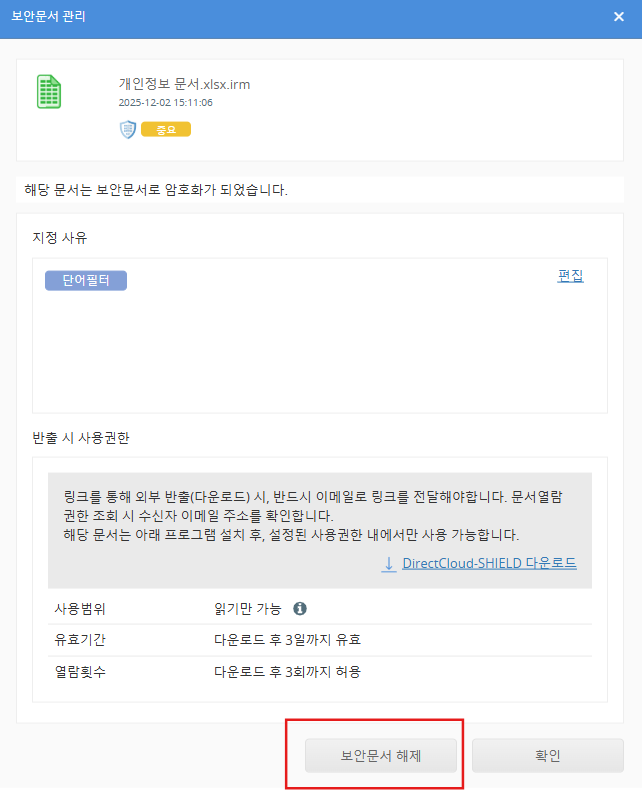
1. 파일의 보안등급 라벨을 클릭합니다.\
보안문서 정의 화면이 표시됩니다.
2. '보안문서 해제' 버튼을 클릭합니다.
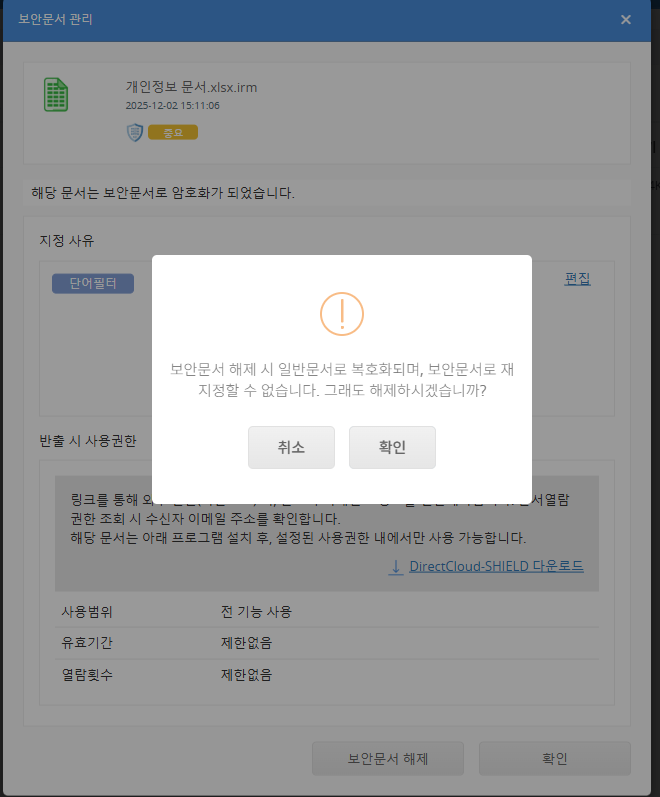
3. 확인 버튼을 클릭합니다.
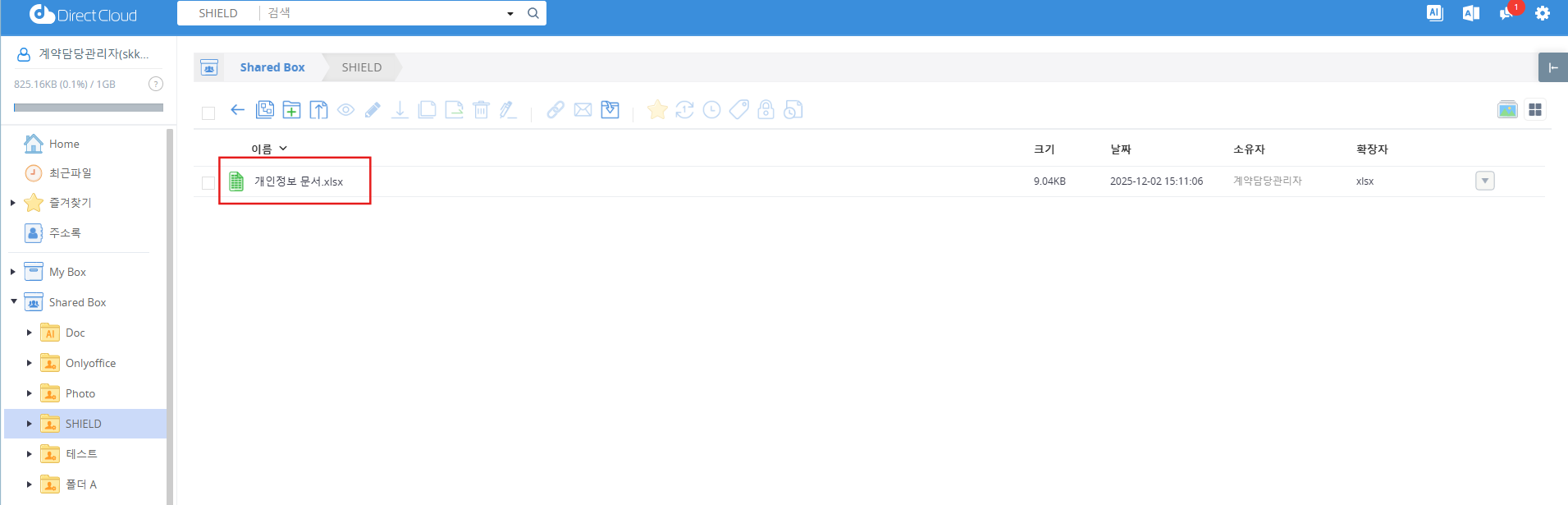
4. 파일에서 SHIELD 아이콘과 보안등급 라벨 표시가 사라집니다.