> For the complete documentation index, see [llms.txt](https://help.directcloud.net/llms.txt). Markdown versions of documentation pages are available by appending `.md` to page URLs; this page is available as [Markdown](https://help.directcloud.net/user_manual/directcloud-ai/file_preparation.md).
# DirectCloud AI를 활용하기 위한 파일을 준비하는 방법
### 개요
DirectCloud에서는, AI를 활용하여 Storage에서 필요한 정보를 빠르게 찾아낼 수 있는 옵션 서비스인 DirectCloud AI를 제공하고 있습니다.\
DirectCloud AI가 유효한 폴더 또는 파일을 대상으로 채팅을 시작하면, 생성 AI가 대상 파일을 참조하여 정보를 보기 쉬운 형식으로 제시해 주는 구조입니다.\
채팅에서는, 질문과 답변 외에도 파일 요약, 비교, 검색 등 다양한 기능을 이용할 수 있습니다.\
또한, AI 기능을 활용한 Web 검색도 할 수 있습니다.\
이와 함께 DirectCloud AI에는 전자 메일을 파일로 저장할 때의 파일 형식인 EML 파일을 EML 요약이 사용 설정된 폴더에 업로드하면, 내용을 질의 응답 형식으로 요약해 텍스트 파일로 저장하는 기능이 있습니다. 요약된 텍스트 파일도 DirectCloud AI 채팅에서 참조됩니다.\
이 매뉴얼에서는 DirectCloud AI를 사용하기 전에, DirectCloud AI가 활성화된 폴더에 처리 대상 파일을 업로드하여 준비하는 방법에 대해 설명합니다.
***
### 제한·보충사항
* 사용자 페이지의 폴더 속성에서 DirectCloud AI 설정을 수행하는 사용자에게는 <마스터> 권한이 설정되어 있어야 합니다.
* ‘DirectCloud AI’ 설정은 기본적으로 ‘사용하지 않음’으로 설정되어 있습니다.
* 이 매뉴얼의 설정을 진행 하려면 먼저관리 페이지의 ‘DirectCloud AI’ > ‘설정’ 메뉴에서 ‘사용’을 선택해야 합니다.
* ‘DirectCloud AI'가 ‘사용함’으로 설정된 폴더가 있는 경우, 관리 페이지의 ‘DirectCloud AI’ > ‘설정’ 메뉴에서 ‘사용 안함’을 선택할 수 없습니다.
* Web 애플리케이션에서 DirectCloud AI를 사용하기 위한 파일을 준비하는 방법에는 다음 두 가지가 있습니다.
1. 폴더 트리에서 DirectCloud AI가 활성화된 폴더를 표시하는 방법
2. DirectCloud AI Home을 표시하는 방법
* 이 매뉴얼의 순서로 DirectCloud AI가 처리할 벡터 데이터를 미리 준비하는 방법 외에, 벡터 데이터가 생성되지 않은 파일로 채팅하면 벡터 데이터 생성이 시작됩니다. 이때 벡터 데이터 생성이 끝나고 채팅이 시작될 때까지 대기 시간이 발생할 수 있습니다.
* 폴더 트리에는 '텍스트 추출 중' 같은 처리 내용에 맞는 텍스트와, 생성형 AI의 전처리 상태에 맞는 'AI 대기 중' 라벨 또는 'AI' 라벨이 추가됩니다. DirectCloud AI Home에서는 처리 내용에 맞는 텍스트와 라벨이 표시되지 않습니다. 다만 벡터 데이터가 생성 중이거나 아직 생성되지 않은 파일명은 흐리게 표시됩니다.
***
### 절차
1. DirectCloud AI를 사용하려는 폴더를 클릭합니다.
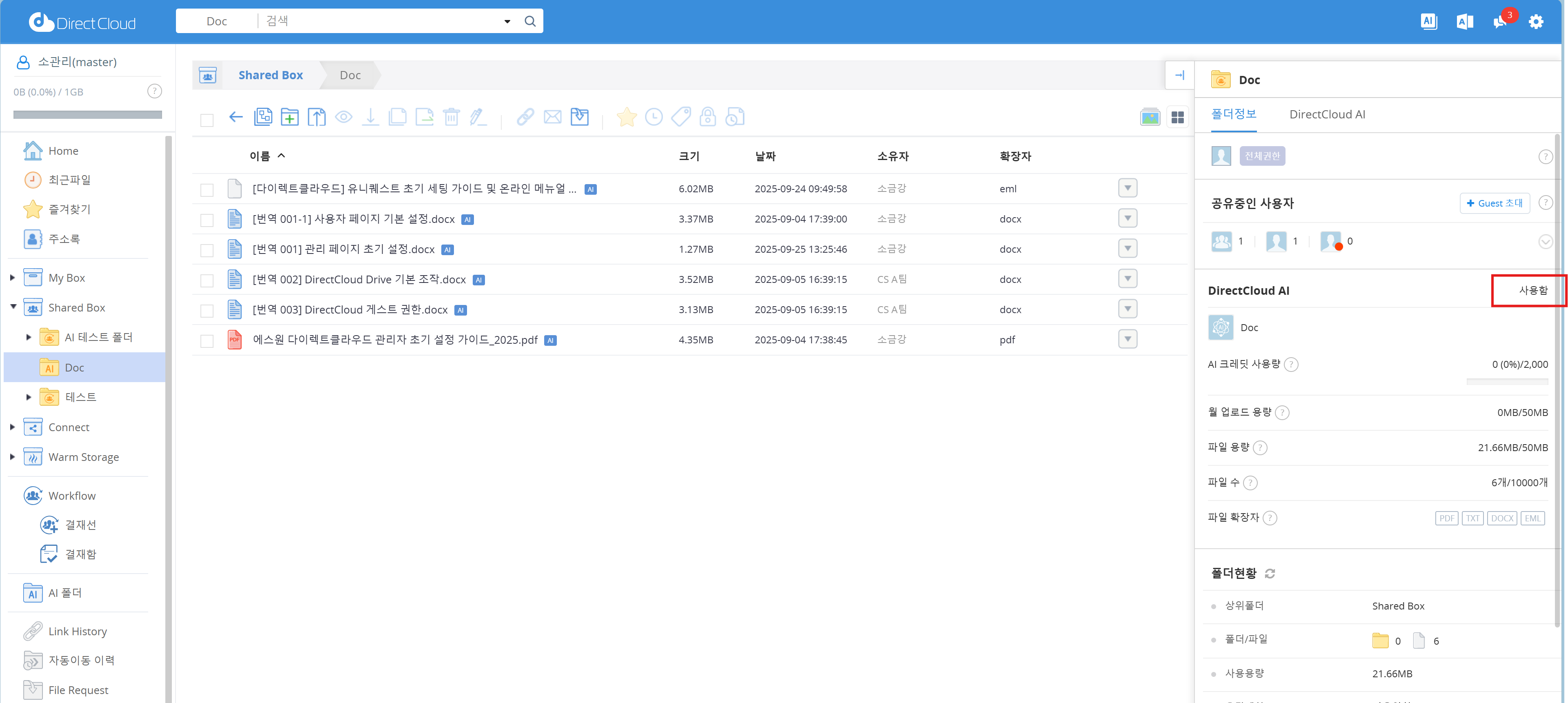
2. 폴더의 슬라이드 화면에서 'DirectCloud AI'가 '사용'으로 설정되어 있는지 확인합니다.
3. 파일을 업로드합니다. 업로드가 완료되면 DirectCloud AI가 언어 처리에 사용하는 벡터 데이터의 생성이 시작됩니다. 벡터 데이터 처리에는 몇 분이 걸릴 수 있습니다. 처리 내용은 기능 설정의 'DirectCloud AI' 설정에서 'AI 요약'에 체크가 되어 있는지에 따라 달라집니다.
* ‘AI 요약’ 항목에 체크되어 있지 않은 경우:\
처리 중인 파일에는 처리 상태에 따라 해당 내용이 표시됩니다.
| 텍스트 | 설명 |
| ----------- | ----------------------------------- |
| 텍스트 추출 중 | 업로드, 복사 또는 이동된 파일에서 텍스트를 추출하고 있습니다. |
| 벡터 데이터 생성 중 | 추출된 텍스트의 벡터 데이터를 생성하고 있습니다. |
벡터 데이터 생성이 완료된 파일 이름에는 ‘AI’ 아이콘이 표시됩니다.
* ‘AI 요약’ 항목에 체크되어 있는 경우:\
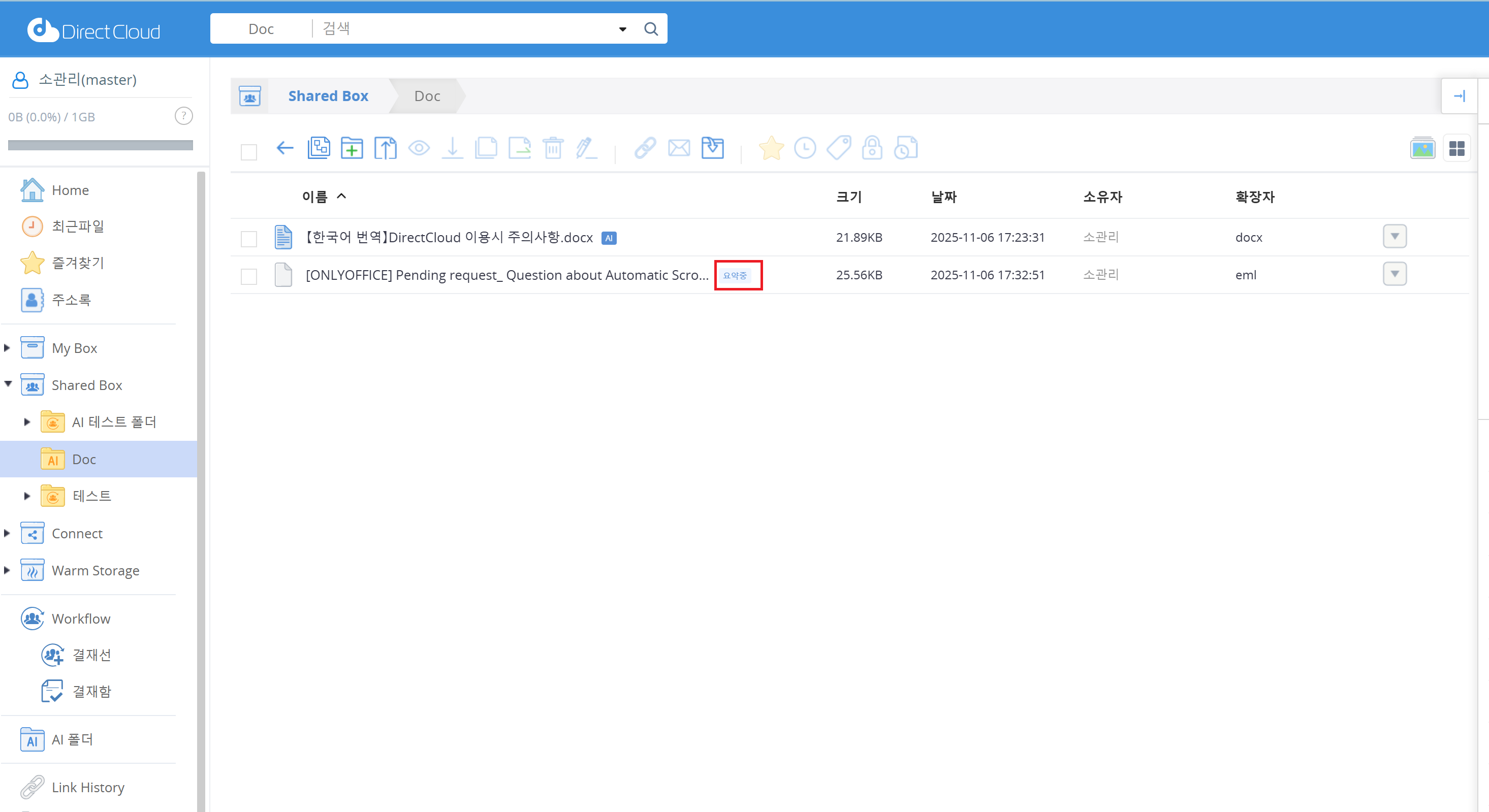
처리 중인 파일에는 처리 상태에 따라 해당 내용이 표시됩니다.\
벡터 데이터 생성이 완료된 파일 이름에는 ‘AI’ 아이콘이 표시됩니다.
텍스트
설명
텍스트 추출 중
업로드, 복사 또는 이동된 EML 파일에서 텍스트를 추출하고 있습니다.
요약 중
EML 파일의 내용을 질문과 답변 형식으로 요약하고 있습니다. 요약된 내용은 텍스트 파일로 저장됩니다.
벡터 데이터 생성 중
요약된 텍스트 파일의 벡터 데이터를 생성하고 있습니다.
요약된 내용은 원본 파일 이름에 확장자 ‘txt’가 추가된 텍스트 파일로 저장됩니다.\
원본 EML 파일은 ‘EML’ 폴더로 이동되며, ‘EML’ 폴더가 존재하지 않는 경우 자동으로 생성됩니다.