> For the complete documentation index, see [llms.txt](https://help.directcloud.net/llms.txt). Markdown versions of documentation pages are available by appending `.md` to page URLs; this page is available as [Markdown](https://help.directcloud.net/test/user_manual/troubleshooting/wd_guest_password.md).
# \[Web, Drive] Guest가 로그인 비밀번호를 잊어버린 경우의 대처 방법
### 개요
이 매뉴얼에서는, Guest가 사용자 페이지에 로그인할 때 필요한 비밀번호를 잊어버린 경우 비밀번호를 재설정하는 방법에 대해 설명합니다.
***
### 제한·보충사항
* 아래 문서에 따라 관리자가 설정한 정책 범위 내에서 비밀번호를 재설정할 수 있습니다.
* [로그인 비밀번호의 최소 문자 수를 변경하는 방법](https://help.directcloud.net/admin_manual/security_policy/password_number)
* [로그인 비밀번호의 문자 유형을 제한하는 방법](https://help.directcloud.net/admin_manual/security_policy/password_type)
* [로그인 비밀번호의 연속 입력을 제한하는 방법](https://help.directcloud.net/admin_manual/security_policy/password_coninuous_input)
* [로그인 비밀번호 유효기간을 설정하는 방법](https://help.directcloud.net/admin_manual/security_policy/password_validity)
* [사용자 및 Guest가 이전 비밀번호를 재사용하지 못하도록 설정하는 방법](https://help.directcloud.net/admin_manual/security_policy/password_reuse_guest)
* 비밀번호 재설정용 URL이 발급된 후 24시간 이내에 비밀번호를 재설정해야 합니다.\
유효 기간은 변경할 수 없습니다.
***
### 절차
{% hint style="warning" %}
**Web 브라우저에서 Guest의 비밀번호 재설정 메일 발송하기**
{% endhint %}
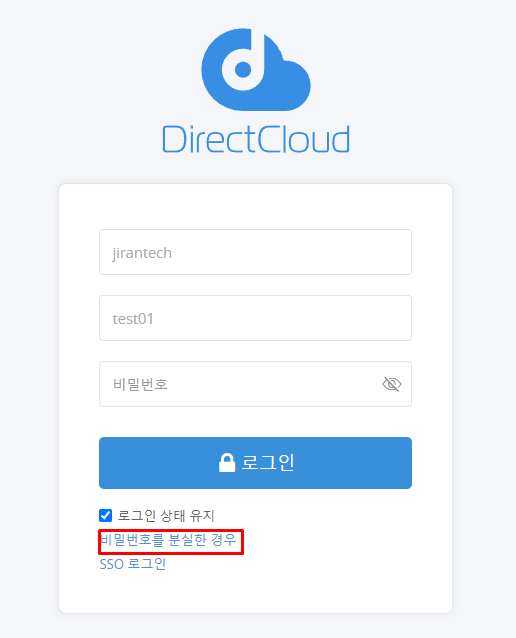
1. 사용자 페이지의 로그인 화면에서 '비밀번호를 분실한 경우' 를 클릭합니다.\
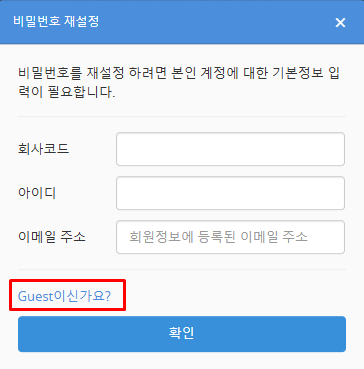
비밀번호 재설정 화면이 표시됩니다.
2. 'Guest이신가요?'를 클릭합니다.
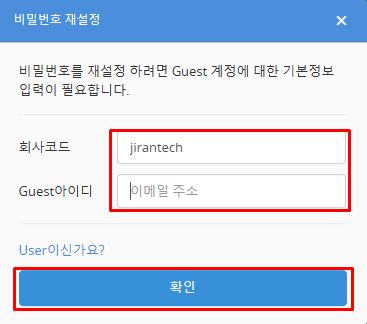
3. '회사코드', 'Guest아이디'를 입력하고 확인 버튼을 클릭합니다.\
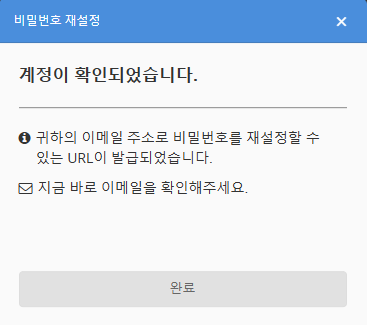
비밀번호 재설정 알림 이메일이 전송됩니다.
4. 완료 버튼을 클릭하여 화면을 닫습니다.
{% hint style="warning" %}
**DirectCloud 드라이브에서 Guest 비밀번호 재설정 메일 발송하기**
{% endhint %}
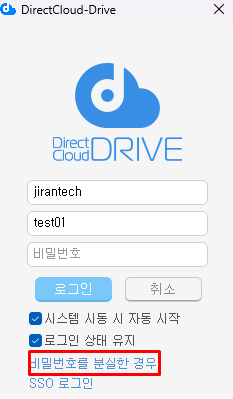
1. 사용자 페이지의 로그인 화면에서 '비밀번호를 분실한 경우'를 클릭합니다.\
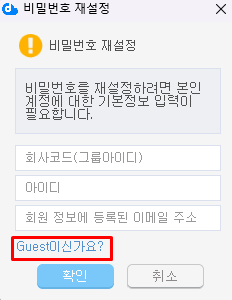
비밀번호 재설정 화면이 표시됩니다.
2. 'Guest이신가요?'를 클릭합니다.
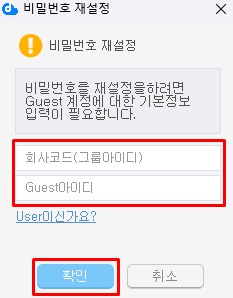
3. '회사코드', 'Guest아이디'를 입력하고 확인 버튼을 클릭합니다.
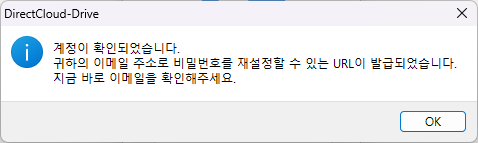
4. 비밀번호 재설정 이메일이 전송되었는지 확인하고 OK 버튼을 클릭합니다.
{% hint style="warning" %}
**비밀번호 재설정 URL을 클릭해 Guest 비밀번호 재설정**
{% endhint %}
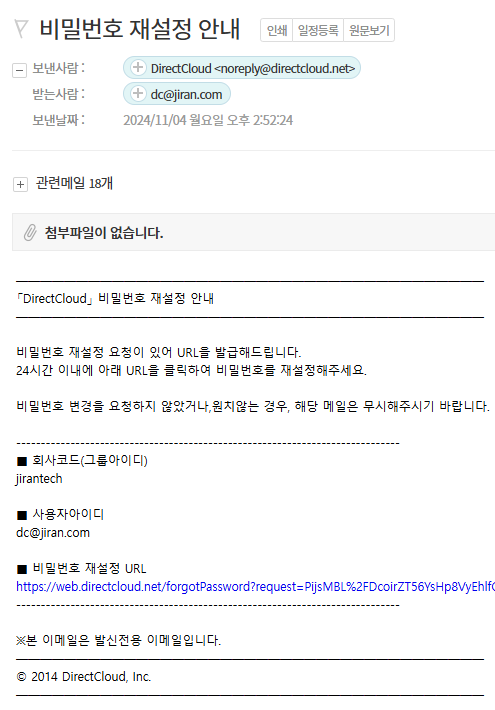
1. '비밀번호 재설정 안내' 이메일에 나와 있는 비밀번호 재설정 URL을 클릭합니다.\
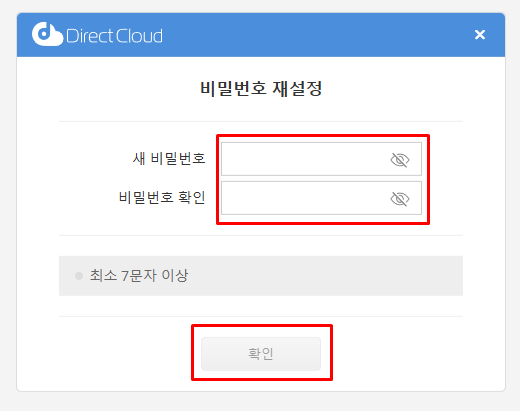
비밀번호 재설정 화면이 표시됩니다.
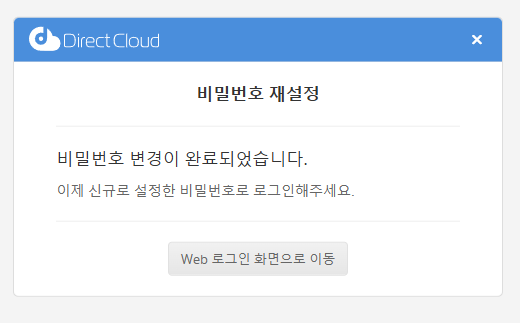
2. 새 비밀번호로 설정하려는 비밀번호를 입력하고 비밀번호 확인에 동일한 비밀번호를 입력한 다음 확인 버튼을 클릭합니다. 암호가 변경되고 완료 화면이 표시됩니다.
3. 로그인하려는 애플리케이션에 따라 다음 방법 중 하나로 로그인 화면을 표시합니다.
* Web 브라우저\
'Web 로그인 화면으로 이동' 버튼을 클릭합니다.
* DirectCloud 드라이브\
DirectCloud 드라이브를 시작합니다.
4. 로그인 화면에서 변경한 비밀번호를 입력하여 로그인합니다.