> For the complete documentation index, see [llms.txt](https://help.directcloud.net/llms.txt). Markdown versions of documentation pages are available by appending `.md` to page URLs; this page is available as [Markdown](https://help.directcloud.net/test/user_manual/file_share/w_reactivation_link.md).
# \[Web] 기간이 만료된 링크를 사용자 페이지에서 다시 활성화하는 방법
### 개요
사용 기간이 만료된 링크는 다시 기간을 연장해 사용할수 있습니다. 이 매뉴얼에서는 사용자 페이지의 Link History 메뉴에서 생성된 링크 목록을 표시한 뒤, 만료된 링크를 다시 활성화하는 절차에 대해 설명합니다.
***
### 제한·보충사항
* 삭제된 링크는 다시 활성화할 수 없습니다.
* [\[Web, Drive\] 링크를 수신할 때, 이메일 주소 입력을 통해 본인 확인을 진행하도록 설정하는 방법](https://help.directcloud.net/user_manual/file_share/wd_identity_verification)의 절차에서 수신자 확인이 활성화되어 있는 경우, 링크의 '링크연장' 버튼은 표시되지 않습니다.
***
### 절차
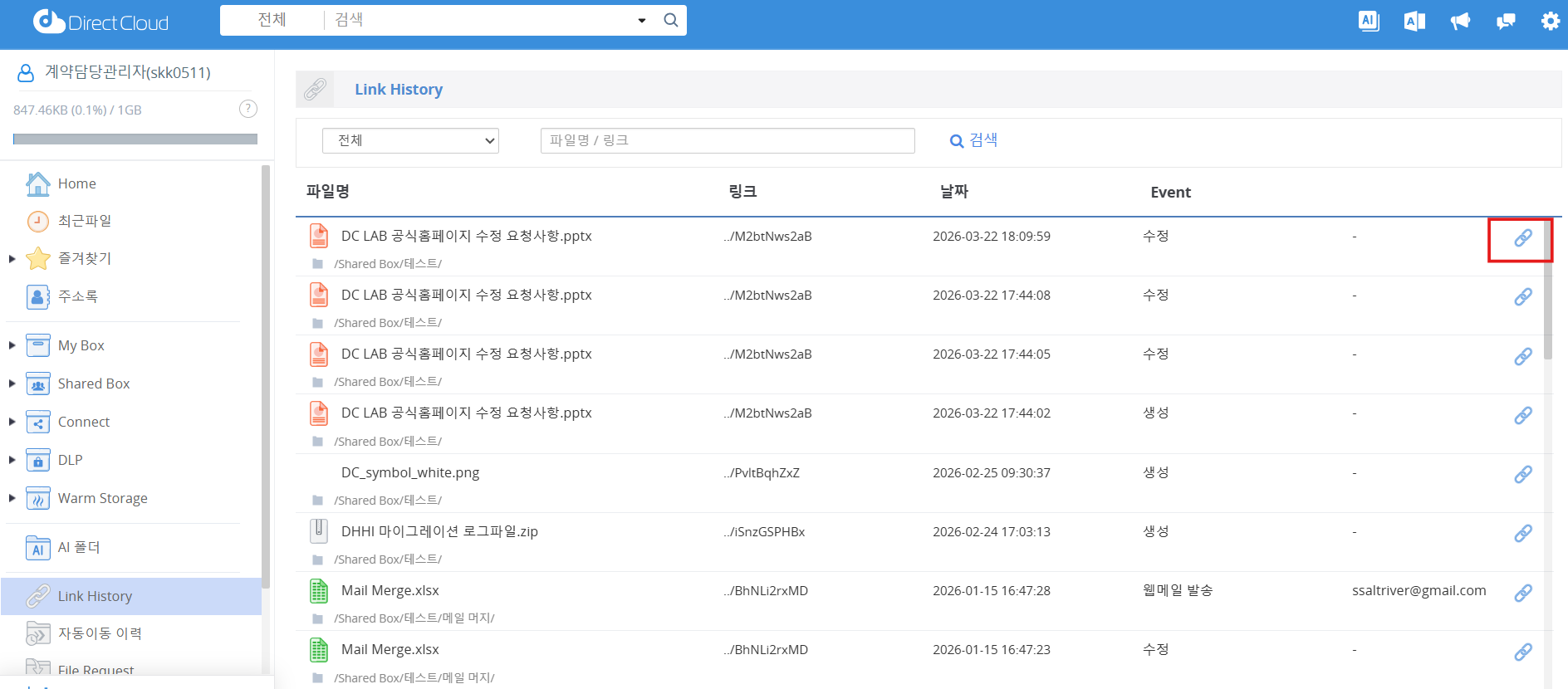
1. 사용자 페이지에서 Link History 메뉴를 클릭합니다.\
Link History가 표시됩니다.
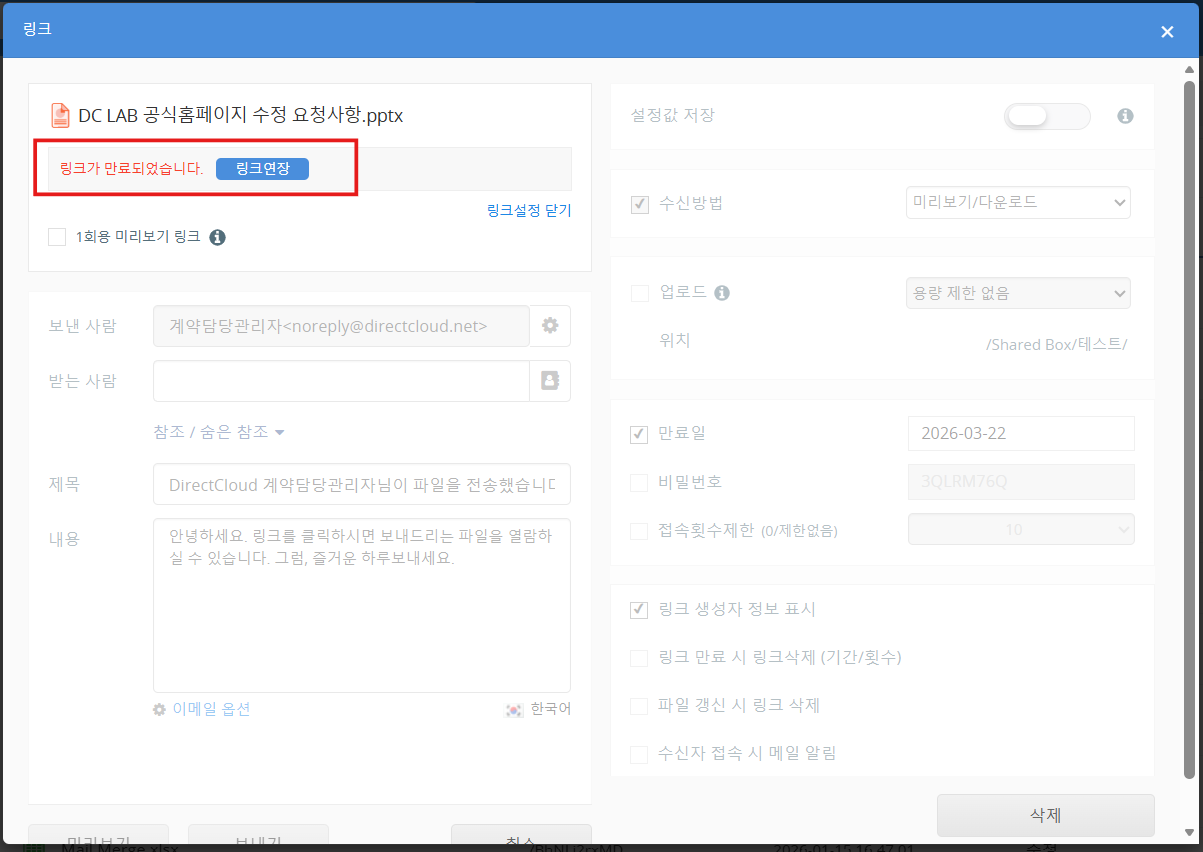
2. 편집하려는 링크의 오른쪽 끝에 표시된 링크 버튼을 클릭합니다.\
링크 생성 화면이 표시됩니다.
\
3\. 비활성화된 링크의 경우, 빨간 글씨로 "링크가 만료되었습니다." 라고 표시됩니다.\
'링크연장' 버튼을 클릭합니다.
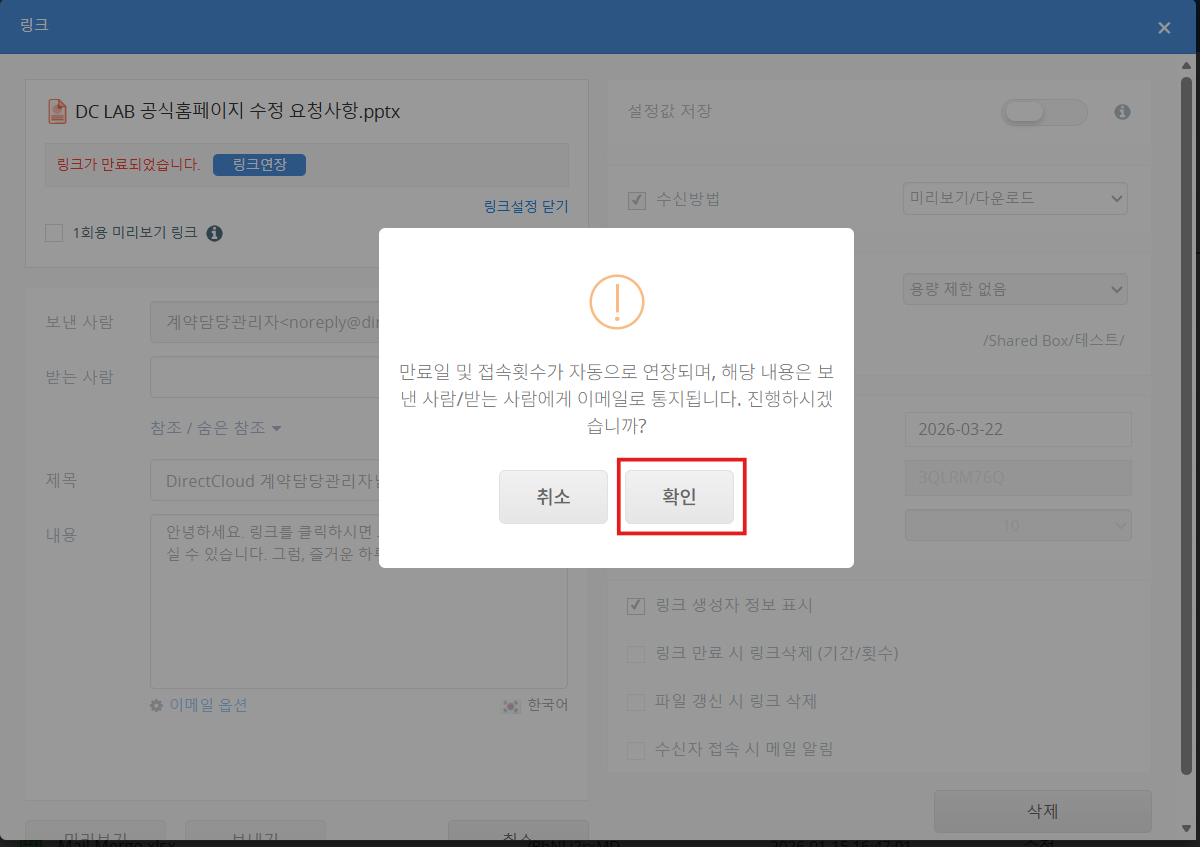
4. 확인 화면에서 '확인' 버튼을 클릭합니다.\
링크가 다시 활성화됩니다.