> For the complete documentation index, see [llms.txt](https://help.directcloud.net/llms.txt). Markdown versions of documentation pages are available by appending `.md` to page URLs; this page is available as [Markdown](https://help.directcloud.net/test/admin_manual-1/undefined-2/undefined-1/download_user_info.md).
# 사용자 정보를 일괄로 다운로드하는 방법
### 개요
이 매뉴얼에서는 ‘계정 관리’ 메뉴에서 관리자 페이지에 등록되어 있는 사용자 정보 목록을 CSV 파일로 일괄 다운로드하는 방법에 대해 설명합니다.
***
### 제한·보충사항
* 관리자 권한이 부여된 사용자는 관리자 페이지의 '계정 관리'를 사용할 수 있습니다.
* 각 그룹은 두 자리 그룹 코드로 관리되며, 그룹을 생성할 때는 부모 그룹 코드 두 자리와 새로 부여되는 그룹 코드 두 자리가 합쳐져 등록됩니다.\
예를 들어 회사명 폴더의 그룹 코드가 AA인 경우, 해당 폴더 바로 아래에 첫 번째 그룹을 만들면 AAAA가, 두 번째 그룹을 만들면 AAAB가 그룹 코드로 등록됩니다.
두 자리 그룹 코드는 아래와 같은 조합으로 구성되며, 이를 모두 합치면 최대 3,844개의 그룹을 생성할 수 있습니다.
No.
코드 분류
범위
그룹 수
1
영문 대문자만
AA~ZZ
676
2
영문 대문자 + 영문 소문자
Aa~Zz
676
3
영문 대문자 + 숫자
A0~A9
260
4
영문 소문자 + 영문 대문자
aA~zZ
676
5
영문 소문자만
aa~zz
676
6
영문 소문자 + 숫자
a0~a9
260
7
숫자 + 영문 대문자
0A~9A
260
8
숫자 + 영문 소문자
0a~9a
260
9
숫자만
00~99
100
* 사용자 정보를 CSV 파일로 다운로드할 수 있는 최대 행 수는 모든 플랜에서 공통으로 100,000행입니다.
* 다운로드 요청은 여러 번 할 수 있지만, 처리가 연속으로 3시간을 초과하면 오류가 발생합니다.
* 다운로드되는 CSV 파일의 문자 코드는 ‘환경 설정’ > ‘상세 설정’ 메뉴의 ‘CSV 다운로드 시 문자 코드 설정’에서 지정된 값이 적용됩니다.
자세한 내용은 [다운로드하는 CSV 파일의 문자 코드를 설정하는 방법](https://help.directcloud.net/admin_manual/detail_settings/csv_encoding)을 참고해 주시기 바랍니다.
***
### 절차
{% hint style="warning" %}
**사용자 정보 다운로드를 요청하기**
{% endhint %}
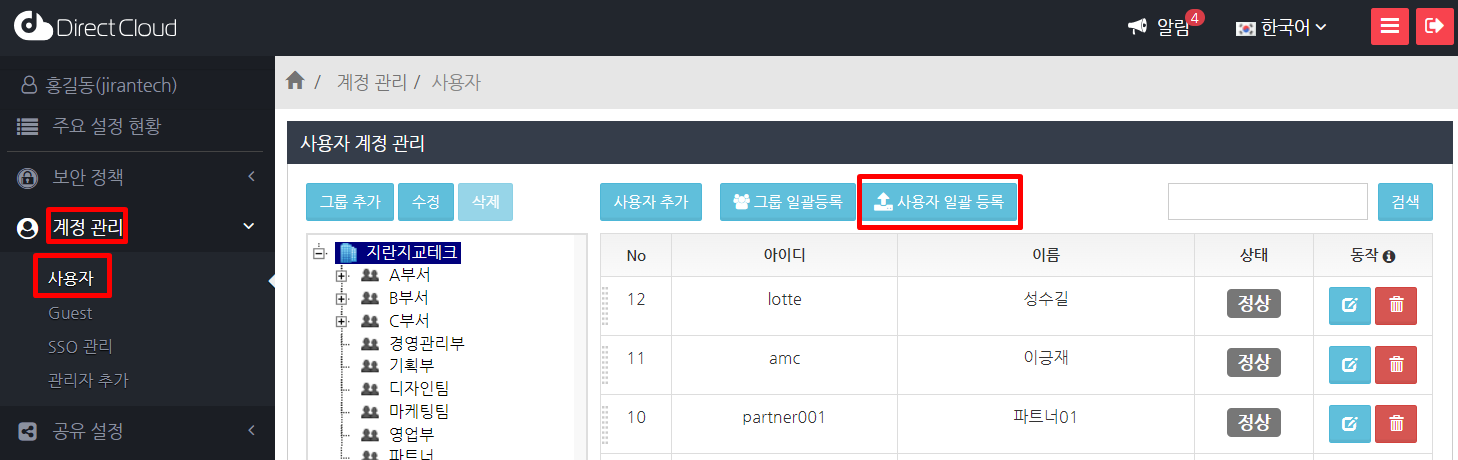
1. '계정 관리' > '사용자' 메뉴를 선택하고 '사용자 일괄 등록' 버튼을 클릭합니다.
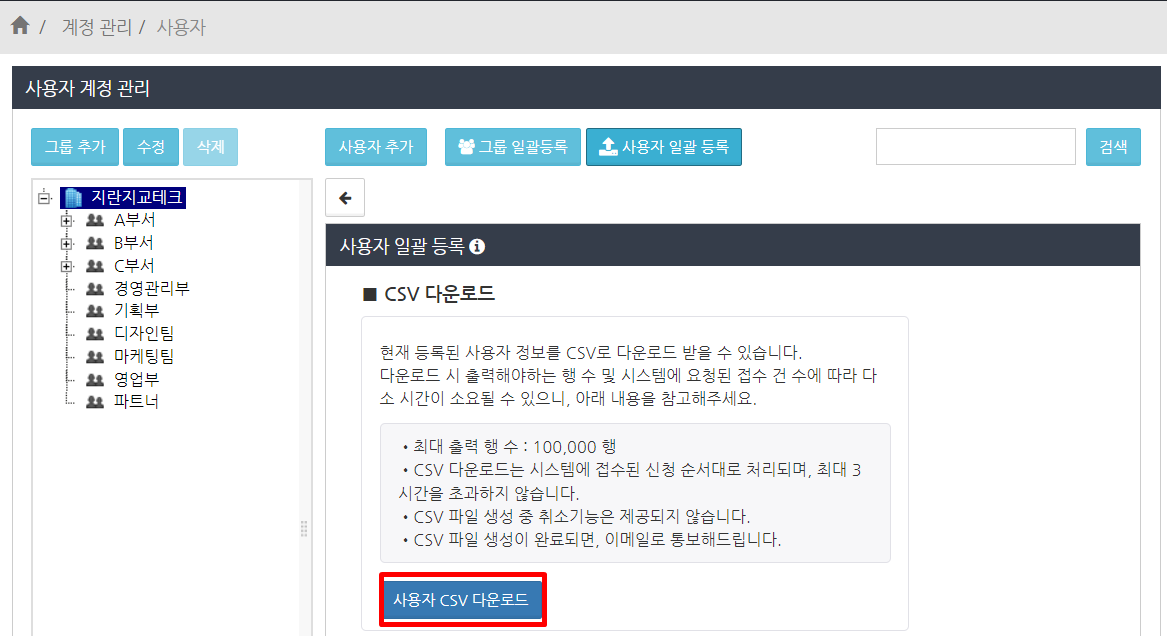
2. 사용자 일괄 등록을 표시하고 사용자 CSV 다운로드 버튼을 클릭합니다.
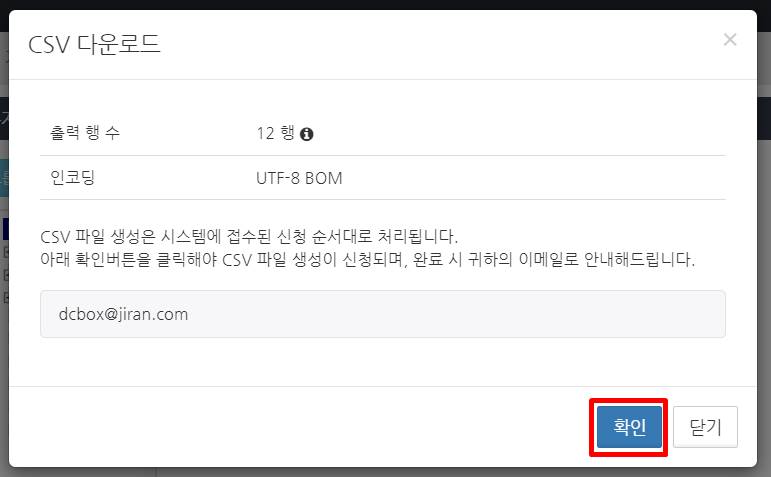
3. CSV 다운로드 확인 화면에서 출력 행 수와 문자 코드를 확인한 다음 확인 버튼을 클릭합니다.
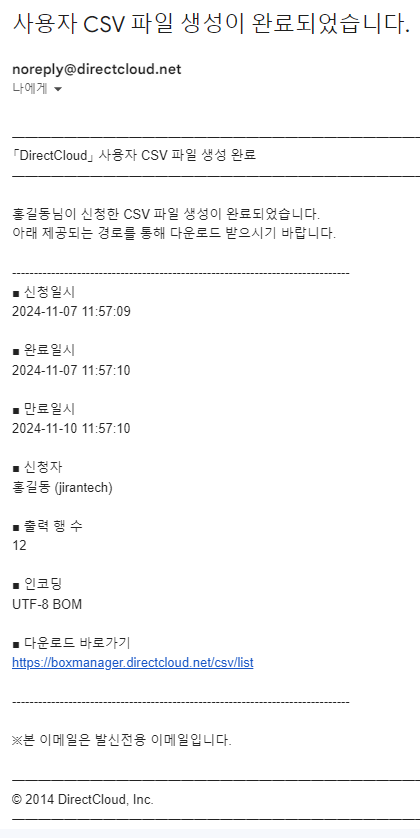
CSV 다운로드처리가 완료되면 요청한 계약 담당 관리자 또는 일반 관리자의 이메일 주소로 알림 이메일을 받게 됩니다.
{% hint style="warning" %}
**알림 이메일 링크에서 CSV 파일 다운로드**
{% endhint %}
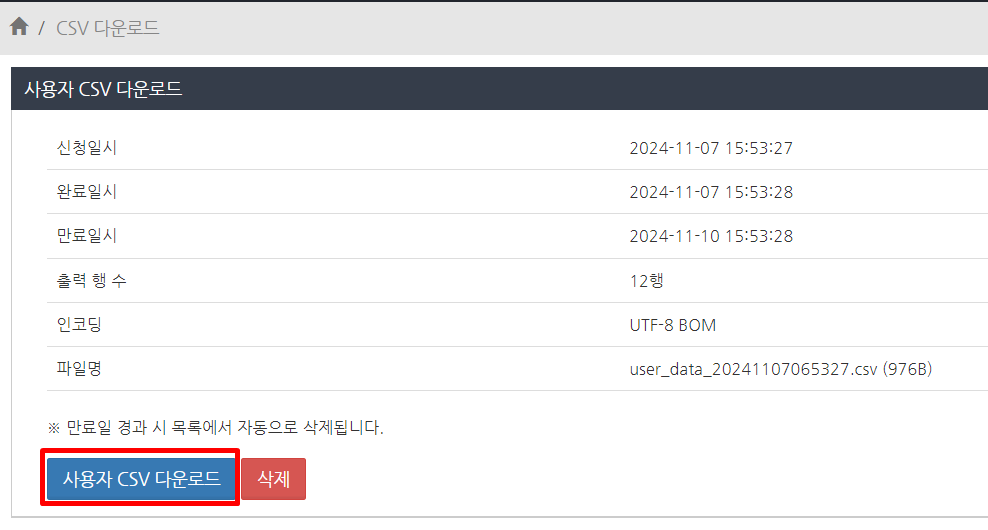
1. 수신한 이메일을 열고 '다운로드 바로가기'의 URL을 클릭합니다.\
사용자CSV 다운로드 페이지가 표시됩니다.
2. 사용자 CSV 다운로드 버튼을 클릭합니다.\
CSV 파일이 다운로드 됩니다.
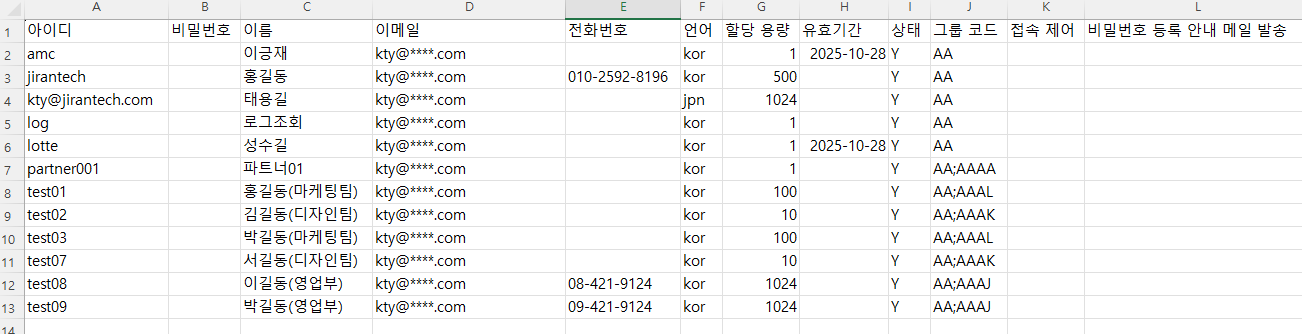
3. CSV 파일을 열어 사용자 정보를 확인합니다.