> For the complete documentation index, see [llms.txt](https://help.directcloud.net/llms.txt). Markdown versions of documentation pages are available by appending `.md` to page URLs; this page is available as [Markdown](https://help.directcloud.net/admin_manual/log/drive_diagnostic_log.md).

# DirectCloud 드라이브 환경 진단 로그를 확인하는 방법

### 개요 <a href="#a03" id="a03"></a>

DirectCloud 드라이브의 동작과 관련된 문제가 발생했을 때, 사용 중인 PC 및 네트워크 정보를 수집하여 DirectCloud로 전송함으로써 원인 조사 및 신속한 문제 해결에 도움이 될 수 있습니다.\
이 매뉴얼에서는, 사용자에 의해 제공된 DirectCloud 드라이브 환경 진단 로그를 확인하는 방법에 대해 설명합니다.

***

### 제한·보충사항 <a href="#a04" id="a04"></a>

* 관리자 권한이 부여된 사용자는 관리자 페이지에서 '로그 현황' 항목에 접근 가능합니다.
* 다운로드되는 CSV 파일의 문자 코드는, '공유 설정' > '세부 기능 설정' 메뉴의 '문자 인코딩'에서 설정되어 있습니다.\
  자세한 내용은, [다운로드하는 CSV 파일의 문자 코드를 설정하는 방법](https://help.directcloud.net/admin_manual/detail_settings/csv_encoding)을 참조해 주시기 바랍니다.

***

### 절차 <a href="#a05" id="a05"></a>

{% hint style="warning" %}
**DirectCloud 드라이브 환경 진단 로그를 확인하기**
{% endhint %}

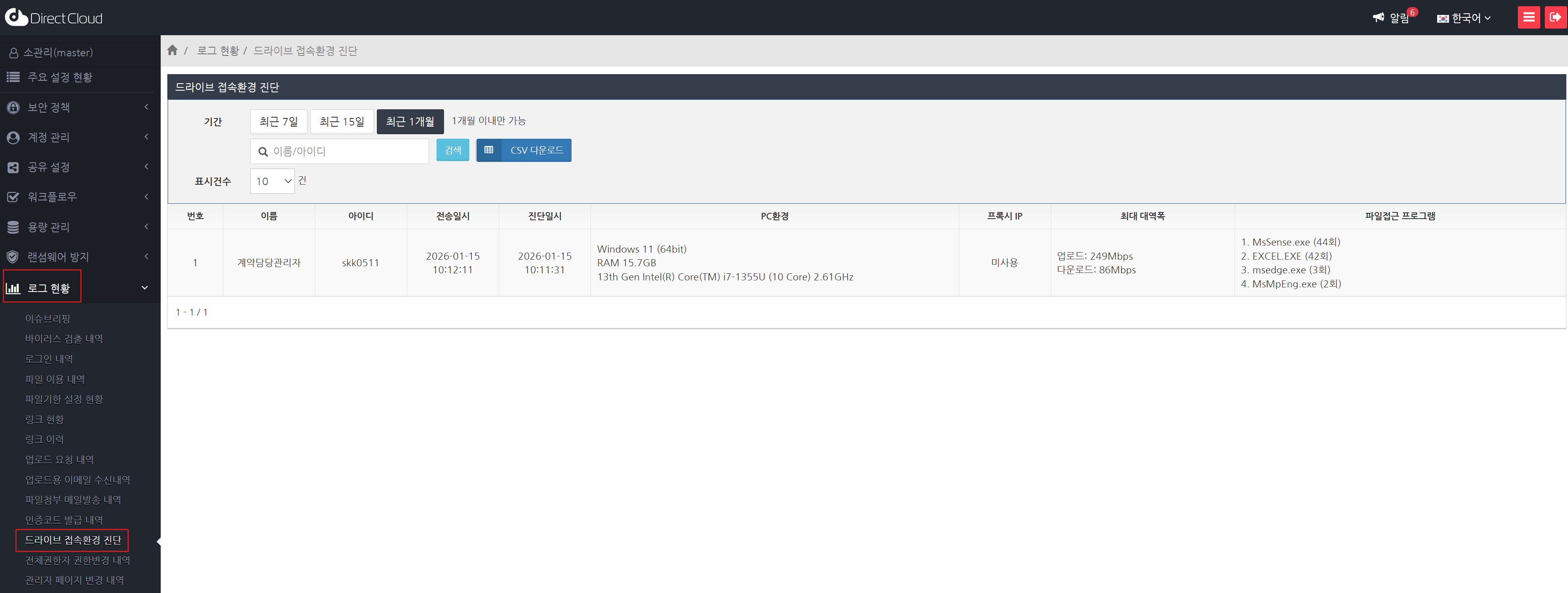
1. '로그 현황' > '드라이브 접속환경 진단' 메뉴를 클릭합니다.

<figure><img src="/files/KA62IQZmcdj0VImyS6OB" alt=""><figcaption></figcaption></figure>

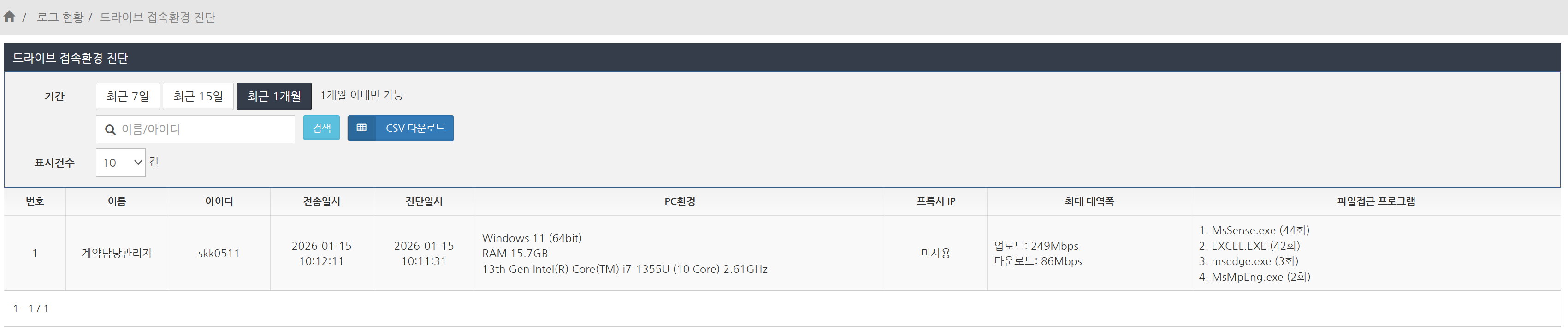
2. DirectCloud 드라이브 환경 진단 로그를 확인합니다.

<figure><img src="/files/unJaXMKov3rlpZDU2iOK" alt=""><figcaption></figcaption></figure>

<table><thead><tr><th width="182.5">항목</th><th>설명</th></tr></thead><tbody><tr><td>이름</td><td>DirectCloud 드라이브 환경 진단 로그를 제공한 사용자의 이름이 표시됩니다.</td></tr><tr><td>아이디</td><td>DirectCloud 드라이브 환경 진단 로그를 제공한 사용자의 사용자 ID가 표시됩니다.</td></tr><tr><td>전송일시</td><td>로그를 제공한 사용자가 DirectCloud 드라이브 환경 진단 로그를 전송한 일시가 표시됩니다.</td></tr><tr><td>진단일시</td><td>로그를 제공한 사용자가 DirectCloud 드라이브 환경 진단을 실행한 일시가 표시됩니다.</td></tr><tr><td>PC환경</td><td><p>아래의 PC 환경 정보가 표시됩니다.</p><ul><li>운영 체제</li><li>메모리</li><li>CPU</li></ul></td></tr><tr><td>프록시 IP</td><td>프록시 사용 여부가 표시됩니다.<br>프록시를 사용하는 경우에는 프록시의 IP 주소가 표시됩니다.</td></tr><tr><td>최대 대역폭</td><td><p>아래의 인터넷 속도가 표시됩니다.</p><ul><li>업로드</li><li>다운로드</li></ul></td></tr><tr><td>파일접근 프로그램</td><td>최근 7일간 DirectCloud 드라이브의 파일에 접근한 외부 프로그램의 이름과 해당 횟수가 표시됩니다.<br>접근 횟수가 많은 순서로 최대 5개의 프로그램이 표시됩니다.</td></tr></tbody></table>

{% hint style="warning" %}
**DirectCloud 드라이브 환경 진단 로그를 필터링하여 표시하기**
{% endhint %}

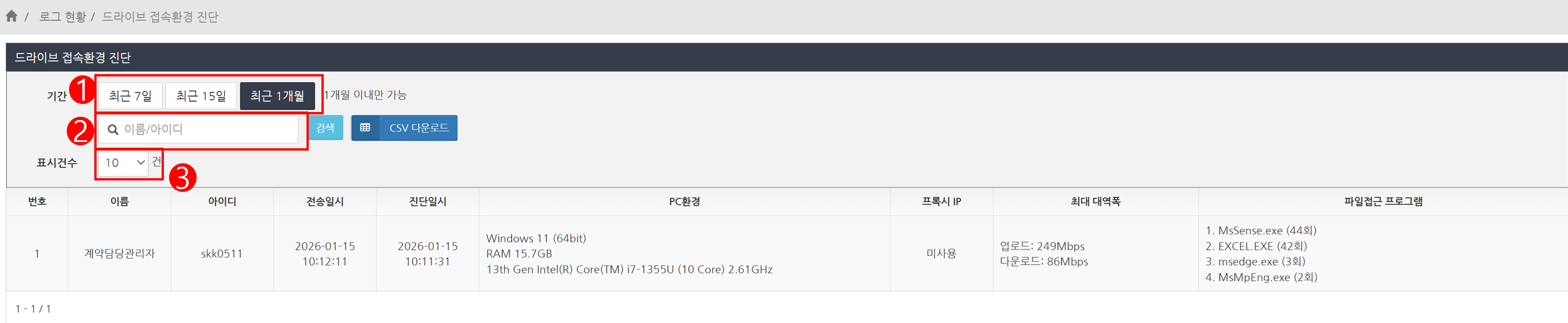
'드라이브 접속환경 진단' 화면에서는 DirectCloud 드라이브 환경 진단 로그를 기간, 사용자, 파일명, 표시건수로 필터링하여 표시할 수 있습니다.

<figure><img src="/files/R1EUxgi5qGg5lrX3k3Nt" alt=""><figcaption></figcaption></figure>

<table><thead><tr><th width="100">No.</th><th>설명</th></tr></thead><tbody><tr><td>❶</td><td><p>DirectCloud 드라이브 환경 진단 로그를 표시할 기간을, '최근 7일' '최근 15일' '최근 1개월' 중에서 선택합니다.</p><p><strong>NOTE</strong>：<br>DirectCloud 드라이브 환경 진단 로그의 경우 보관 기간이 1개월이므로, '최근 3개월'을 선택하여 검색하면 오류가 발생합니다.</p></td></tr><tr><td>❷</td><td>DirectCloud 드라이브 환경 진단 로그를 로그를 제공한 사용자로 필터링하려는 경우, '사용자명' 또는 '사용자 ID'를 입력합니다.</td></tr><tr><td>❸</td><td>DirectCloud 드라이브 환경 진단 로그를 표시할 건수를, '10' '25' '50' '100' 중에서 선택합니다.</td></tr></tbody></table>

{% hint style="warning" %}
**DirectCloud 드라이브 환경 진단 로그를 CSV 파일로 다운로드하기**
{% endhint %}

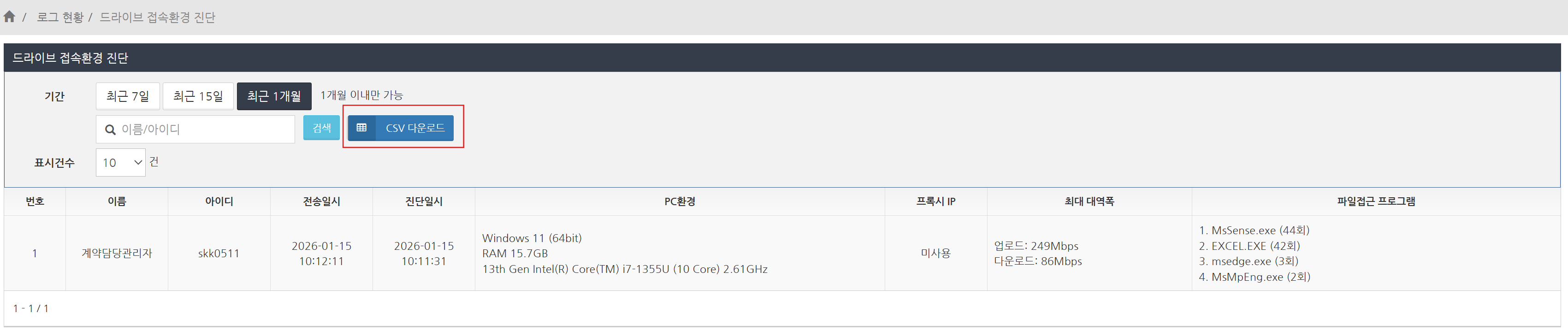
1. '드라이브 접속환경 진단' 설정에서 'CSV 다운로드' 버튼을 클릭합니다.\
   CSV 파일이 다운로드 됩니다.\
   필요에 따라 DirectCloud 드라이브 환경 진단 로그를 필터링한 후 다운로드하는 것을 권장합니다.

<figure><img src="/files/s670YepTAwhPXsE3jYdO" alt=""><figcaption></figcaption></figure>

2. CSV 파일을 열어, 문제없이 표시되는지 확인합니다.

<figure><img src="/files/b2APu2RvxNxVnn2seUNJ" alt=""><figcaption></figcaption></figure>