# 관리자 페이지에서 파일의 잠금을 해제하는 방법

### 개요 <a href="#a03" id="a03"></a>

계약 관리자와 일반 관리자는 사용자가 잠금한 파일을 관리자 페이지에서 해제할 수 있습니다.\
이 매뉴얼에서는 파일 목록을 표시하고, 파일 잠금을 해제하는 방법에 대해 설명합니다.

***

### 제한·보충사항 <a href="#a04" id="a04"></a>

* 관리자 권한이 부여된 사용자는 관리자 페이지에서 '공유 설정' 메뉴를 사용할 수 있습니다.
* 이 매뉴얼에서는 Shared Box에서의 작업 방법을 설명하고 있지만, Connect 폴더, DLP 폴더에서도 동일한 절차로 작업할 수 있습니다.
* Warm Storage의 파일은 잠금 또는 잠금 해제를 할 수 없습니다.
* 잠금된 파일을 Shared Box에서 Warm Storage로 이동하면 잠금이 해제됩니다.
* DirectCloud-CONNECT를 사용할 수 있는 경우, 관리자 페이지에 '공유 설정' > 'Connect' 관리 메뉴가 표시됩니다.
* DirectCloud-SHIELD DLP를 계약하고 있는 경우, 관리자 페이지에 '공유 설정' > 'DLP 관리' 메뉴가 표시됩니다.
* Warm Storage를 사용할 수 있는 경우, 관리자 페이지에 '공유 설정' > 'Warm Storage 관리' 메뉴가 표시됩니다.

***

### 절차 <a href="#a05" id="a05"></a>

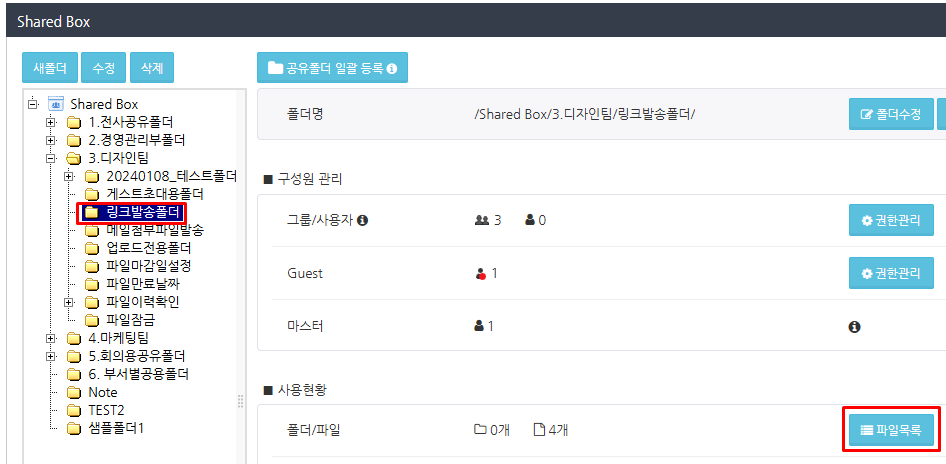
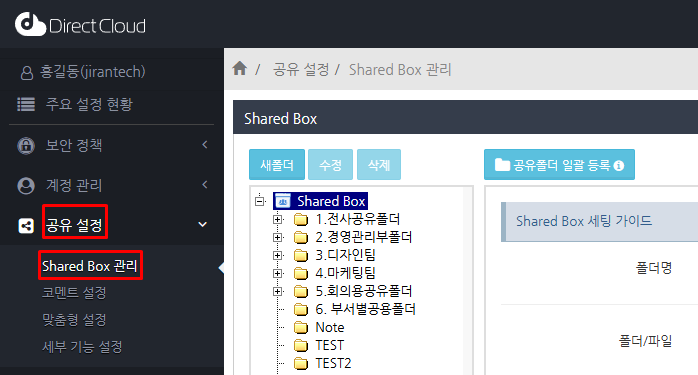
1. '공유 설정' > 'Shared Box' 관리 메뉴를 선택합니다.

<figure><img src="https://1610041171-files.gitbook.io/~/files/v0/b/gitbook-x-prod.appspot.com/o/spaces%2FFRc8hBWqHCHYh3E0AhFb%2Fuploads%2FvmSiPDdXFtgDioN3S69P%2Fimage.png?alt=media&#x26;token=5a1859b1-8d01-4e93-9b56-491b633ffd4b" alt=""><figcaption></figcaption></figure>

2. 폴더 트리에서 잠긴 파일이 저장된 폴더를 선택하고 파일 목록 버튼을 클릭합니다.

<figure><img src="https://1610041171-files.gitbook.io/~/files/v0/b/gitbook-x-prod.appspot.com/o/spaces%2FFRc8hBWqHCHYh3E0AhFb%2Fuploads%2FuVQTXHbzfFuBVr5vwPst%2Fimage.png?alt=media&#x26;token=0e671e15-93bc-4de7-b330-2a9e124dcba3" alt=""><figcaption></figcaption></figure>

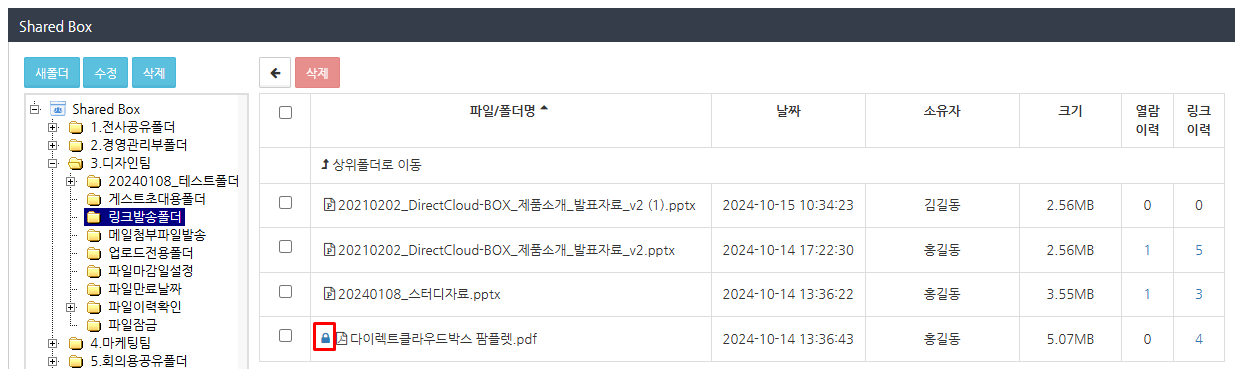
3. 잠긴 파일의 시작 부분에 표시된 키 아이콘을 클릭합니다. 파일 잠금 화면이 표시됩니다.

<figure><img src="https://1610041171-files.gitbook.io/~/files/v0/b/gitbook-x-prod.appspot.com/o/spaces%2FFRc8hBWqHCHYh3E0AhFb%2Fuploads%2Fo0rEX3ziJvU3JqUtDG5b%2Fimage.png?alt=media&#x26;token=bc798623-bf10-45db-88fb-0466aa0863d4" alt=""><figcaption></figcaption></figure>

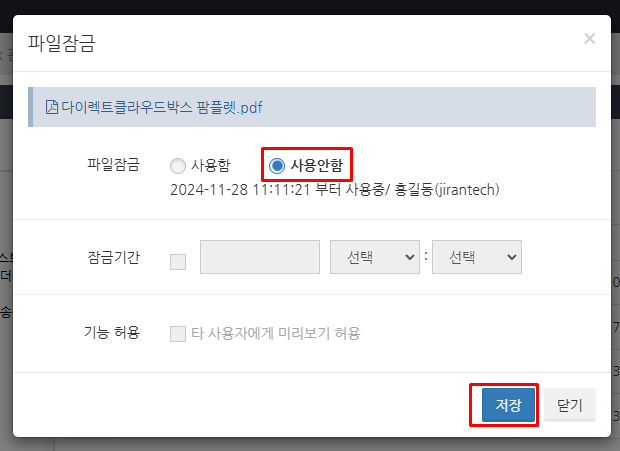
4. 파일 잠금 설정에서 사용 안함을 선택하고 저장 버튼을 클릭합니다. 파일의 잠금이 해제됩니다.

<figure><img src="https://1610041171-files.gitbook.io/~/files/v0/b/gitbook-x-prod.appspot.com/o/spaces%2FFRc8hBWqHCHYh3E0AhFb%2Fuploads%2FY2FZayPrqLSWAGCt5Gaw%2Fimage.png?alt=media&#x26;token=4f088311-af10-45ef-b360-8cbbe4367e7b" alt=""><figcaption></figcaption></figure>

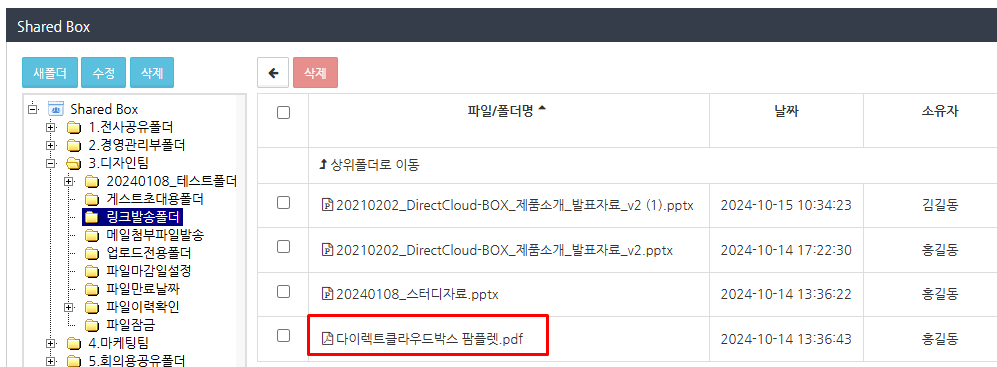
5. '파일목록'을 표시하여 잠금을 해제한 파일에서 키 아이콘이 사라졌는지 확인합니다.
<figure><img src="https://1610041171-files.gitbook.io/~/files/v0/b/gitbook-x-prod.appspot.com/o/spaces%2FFRc8hBWqHCHYh3E0AhFb%2Fuploads%2FrGbI3RFJhyXrwIUnqTlD%2Fimage.png?alt=media&#x26;token=f26ed3f7-0a22-45a8-be7d-93815ee2b507" alt=""><figcaption></figcaption></figure>


---

# Agent Instructions: Querying This Documentation

If you need additional information that is not directly available in this page, you can query the documentation dynamically by asking a question.

Perform an HTTP GET request on the current page URL with the `ask` query parameter:

```
GET https://help.directcloud.net/admin_manual/folder/unlock_file.md?ask=<question>
```

The question should be specific, self-contained, and written in natural language.
The response will contain a direct answer to the question and relevant excerpts and sources from the documentation.

Use this mechanism when the answer is not explicitly present in the current page, you need clarification or additional context, or you want to retrieve related documentation sections.