# 보안문서 해제 이력과 보안등급 변경 이력을 확인하는 방법

### 개요

DirectCloud의 유료 옵션인 DirectCloud-SHIELD IRM을 이용하고 있는 경우,\
IRM(Information Rights Management)을 통해 의도치 않은 파일 유출을 방지할 수 있습니다.\
이 매뉴얼에서는 아래 작업의 이력을 확인하는 방법에 대해 설명합니다.

* [보안문서 판정 기준 설정 방법](https://help.directcloud.net/admin_manual/directcloud-shield-irm/security_criteria)
* [파일의 보안등급을 변경하는 방법](https://help.directcloud.net/admin_manual/directcloud-shield-irm/change_security_level)
* [사용자 페이지에서 파일의 보안등급을 변경하는 방법](https://help.directcloud.net/user_manual/file_management/irm_security_level)
* [보안문서 설정을 관리자 페이지에서 해제하는 방법](https://help.directcloud.net/admin_manual/directcloud-shield-irm/release_security_doc)
* [사용자 페이지에서 파일의 보안문서 설정을 해제하는 방법](https://help.directcloud.net/user_manual/file_management/irm_unlock)

### 제한·보충사항 <a href="#a04" id="a04"></a>

* 관리자 권한이 부여된 사용자는 관리자 페이지에서 'SHIELD' 항목을 사용 가능합니다.
* 이 매뉴얼 에서 설명하는 DirectCloud-SHIELD IRM은 DirectCloud의 유료 옵션입니다.
* DirectCloud-SHIELD IRM은 다른 유료 옵션인 DirectCloud-SHIELD DLP로 전환할 수 있습니다. 자세한 내용은 DirectCloud 측으로 문의 부탁드립니다.
* 속성 변경 로그에는 속성이 변경되기 전의 파일명이 표시됩니다.\
  또한, 보안등급 변경 로그에는 보안등급이 변경된 이후의 파일명이 표시됩니다.
* 암호화 해제 로그에는 암호화가 해제된 이후의 파일명이 표시됩니다.
* 다운로드되는 CSV 파일의 문자 코드는 환경 설정 > 상세 설정 메뉴의 CSV 다운로드 시 문자 코드 설정에서 지정됩니다.\
  자세한 내용은 [다운로드하는CSV 파일의 문자 코드를 설정하는 방법](https://help.directcloud.net/admin_manual/detail_settings/csv_encoding)을 참고해주시기 바랍니다.

### 절차

{% hint style="warning" %}
**보안문서 해제 이력과 보안등급 변경 이력을 확인하는 방법**
{% endhint %}

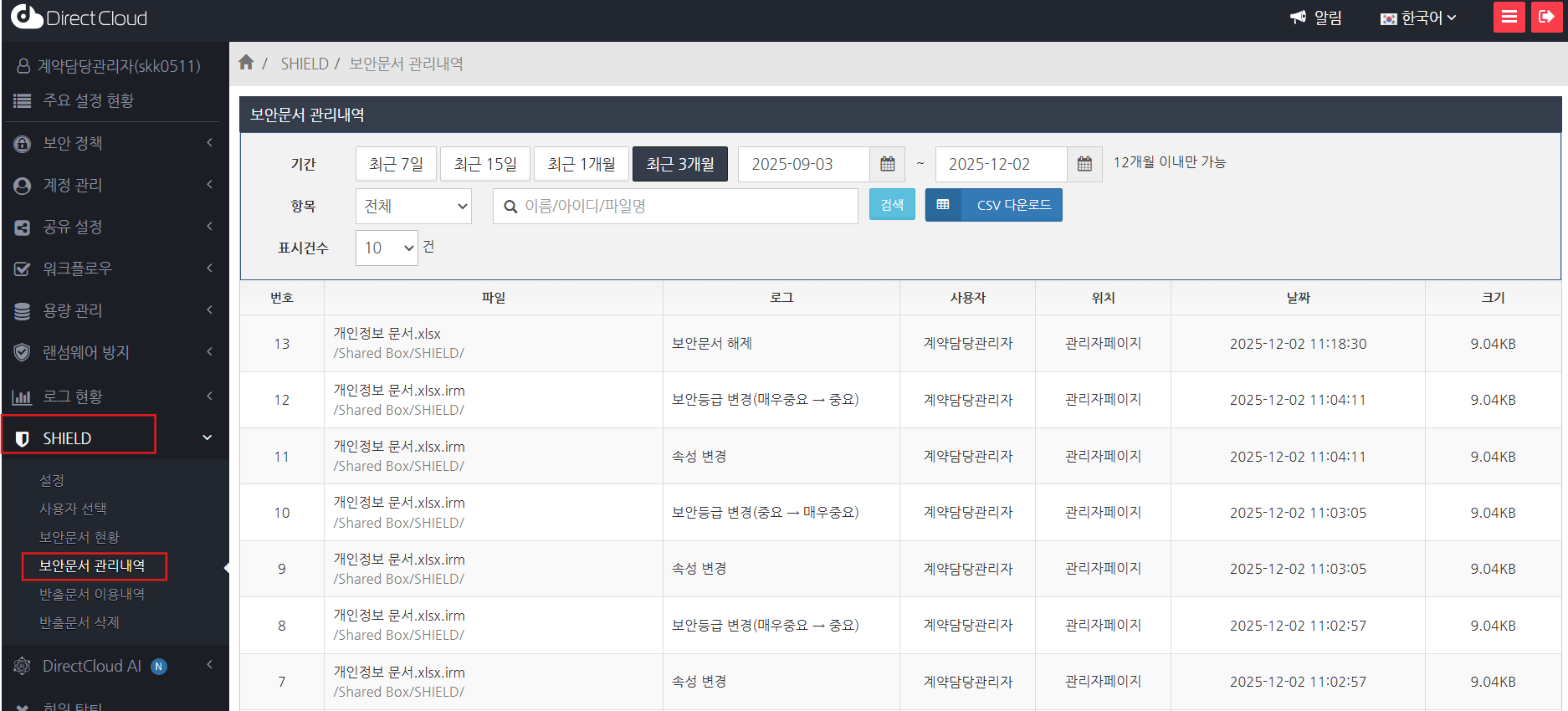
1. 'SHIELD' > '보안문서 관리 내역' 메뉴를 클릭합니다.

<figure><img src="/files/QHuxpG8Zz9DCnlbJ2GOb" alt=""><figcaption></figcaption></figure>

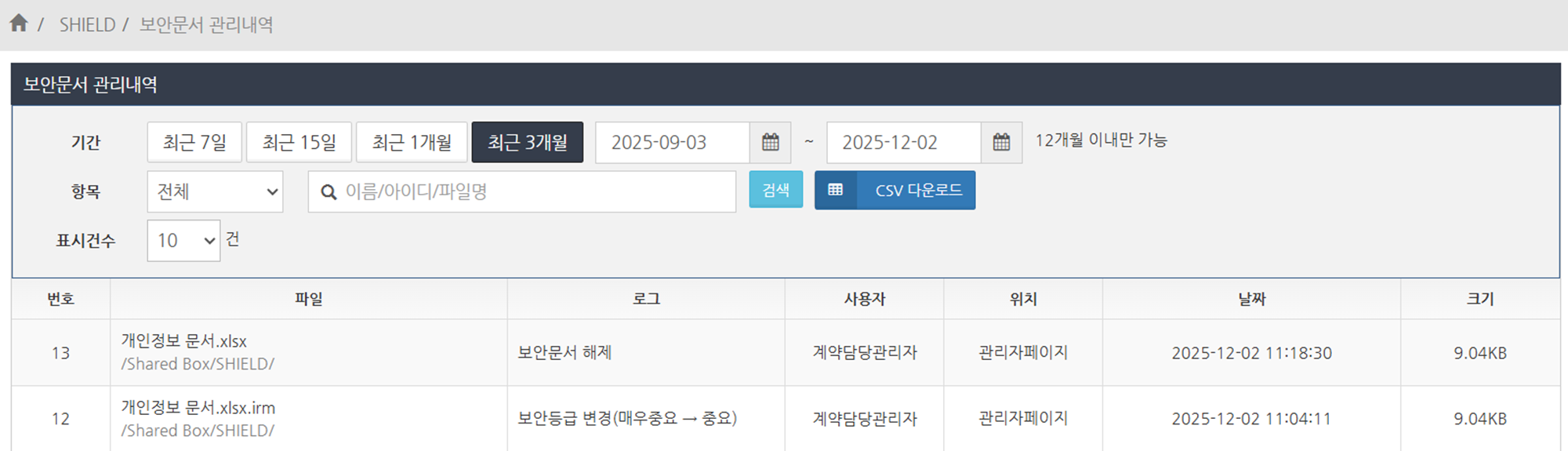
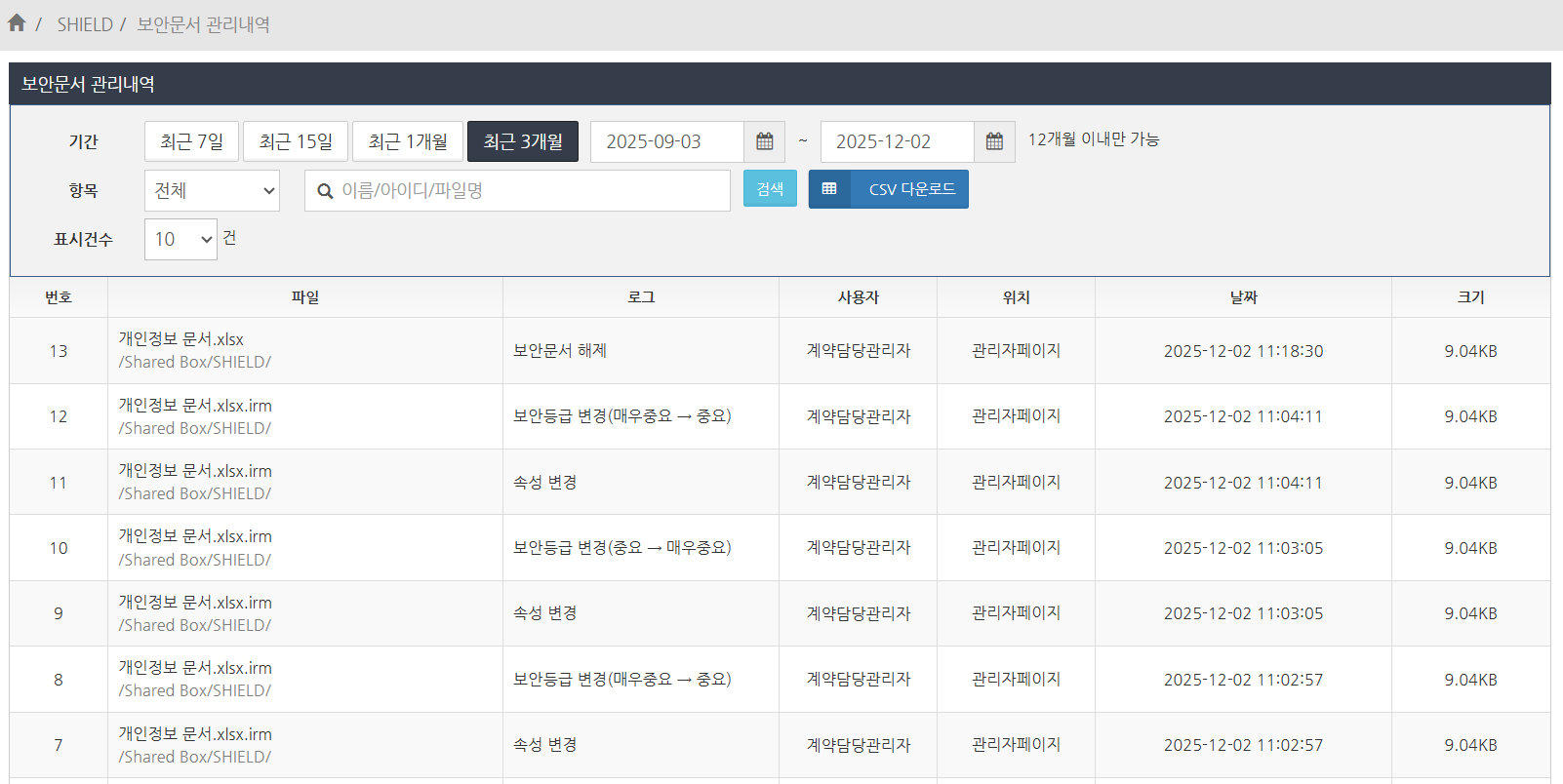
2. 보안문서 해제 이력과 보안등급 변경 이력을 확인합니다.

<figure><img src="/files/ifuE8POQ33BWKlsSXZ8n" alt=""><figcaption></figcaption></figure>

<table><thead><tr><th width="134.800048828125">항목</th><th>내용</th></tr></thead><tbody><tr><td>파일</td><td>보안등급을 변경·해제했거나, 보안문서를 해제한 파일의 이름이 표시됩니다.</td></tr><tr><td>로그</td><td><p>다음 중 하나의 로그 유형이 표시됩니다.</p><ul><li><strong>속성 변경</strong><br>문서 속성이 변경된 경우 표시됩니다.</li><li><strong>보안등급 변경</strong><br>속성 변경을 통해 변경된 보안등급 정보가 표시됩니다.</li><li><strong>보안문서 해제</strong><br>보안문서에서 해제된 경우 표시됩니다.</li></ul></td></tr><tr><td>사용자</td><td>보안등급을 변경·해제했거나, 보안문서를 해제한 사용의 이름이 표시됩니다.</td></tr><tr><td>위치</td><td><p>사용자가 작업을 수행한 페이지로서, 아래 중 하나가 표시됩니다.</p><ul><li><strong>관리자 페이지</strong><br>관리자 페이지</li><li><strong>Web</strong><br>Web 브라우저의 사용자 페이지</li></ul></td></tr><tr><td>날짜</td><td>보안등급을 변경·해제했거나, 보안문서를 해제한 날짜가 표시됩니다.</td></tr><tr><td>크기</td><td>파일의 용량이 표시됩니다.</td></tr></tbody></table>

{% hint style="warning" %}
**보안문서 해제 이력과 보안등급 변경 이력을 필터링 하여 표시하기**
{% endhint %}

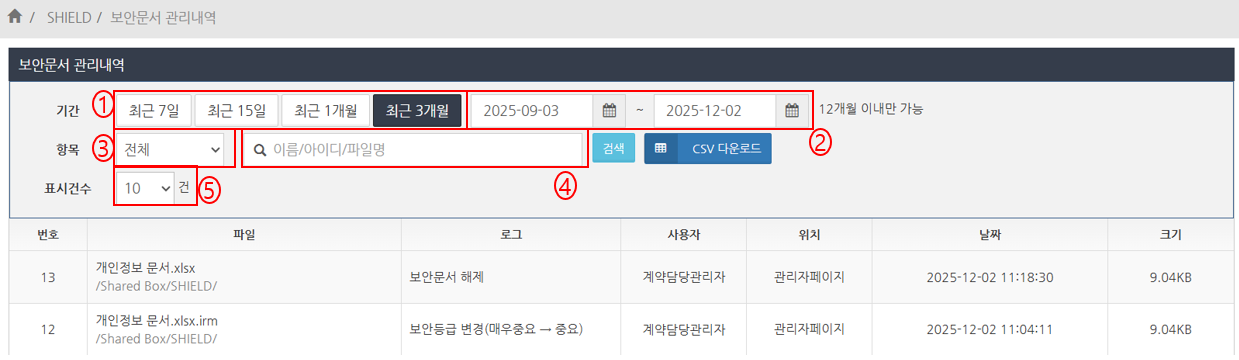
'보안문서 관리 내역'에서는 파일의 보안등급과 보안문서 변경 이력을 기간, 사용자, 파일명, 로그 종류, 건수로 필터링하여 표시할 수 있습니다.

<figure><img src="/files/JUOcTn70IubpbFAqfz0v" alt=""><figcaption></figcaption></figure>

<table><thead><tr><th width="89.20001220703125">No.</th><th>설명</th></tr></thead><tbody><tr><td>1</td><td>파일의 보안등급과 암호화 변경 이력을 표시할 기간을<br>직전 7일, 직전 15일, 직전 1개월, 직전 3개월 중에서 선택합니다.</td></tr><tr><td>2</td><td>계약 시작부터 현재까지의 파일 보안등급 및 암호화 변경 이력을 표시할 기간을 직접 지정합니다.<br>지정할 수 있는 기간은 최대 12개월입니다.</td></tr><tr><td>3</td><td>클릭하여 드롭다운 목록을 표시한 뒤, 파일의 보안등급 및 암호화 변경 이력을 필터링하여 표시할 로그를 선택합니다.</td></tr><tr><td>4</td><td>파일의 보안등급 및 암호화 변경 이력을 작업한 사용자 또는 파일명으로 필터링하려는 경우,<br>사용자명 또는 사용자 ID, 혹은 파일명을 입력합니다.</td></tr><tr><td>5</td><td>파일의 보안등급 및 암호화 변경 이력을 표시할 건수를<br>10, 25, 50, 100 중에서 선택합니다.</td></tr></tbody></table>

{% hint style="warning" %}
**보안문서 해제 이력과 보안등급 변경 이력을 CSV 파일로 다운로드하기**
{% endhint %}

1. '보안문서 관리내역'에서 CSV 다운로드 버튼을 클릭합니다.\
   필요에 따라 파일의 보안등급 및 보안문서 변경 이력을 필터링한 후 다운로드하시기를 권장합니다.

<figure><img src="/files/uW7k0Uo96IUDfYSKERl4" alt=""><figcaption></figcaption></figure>

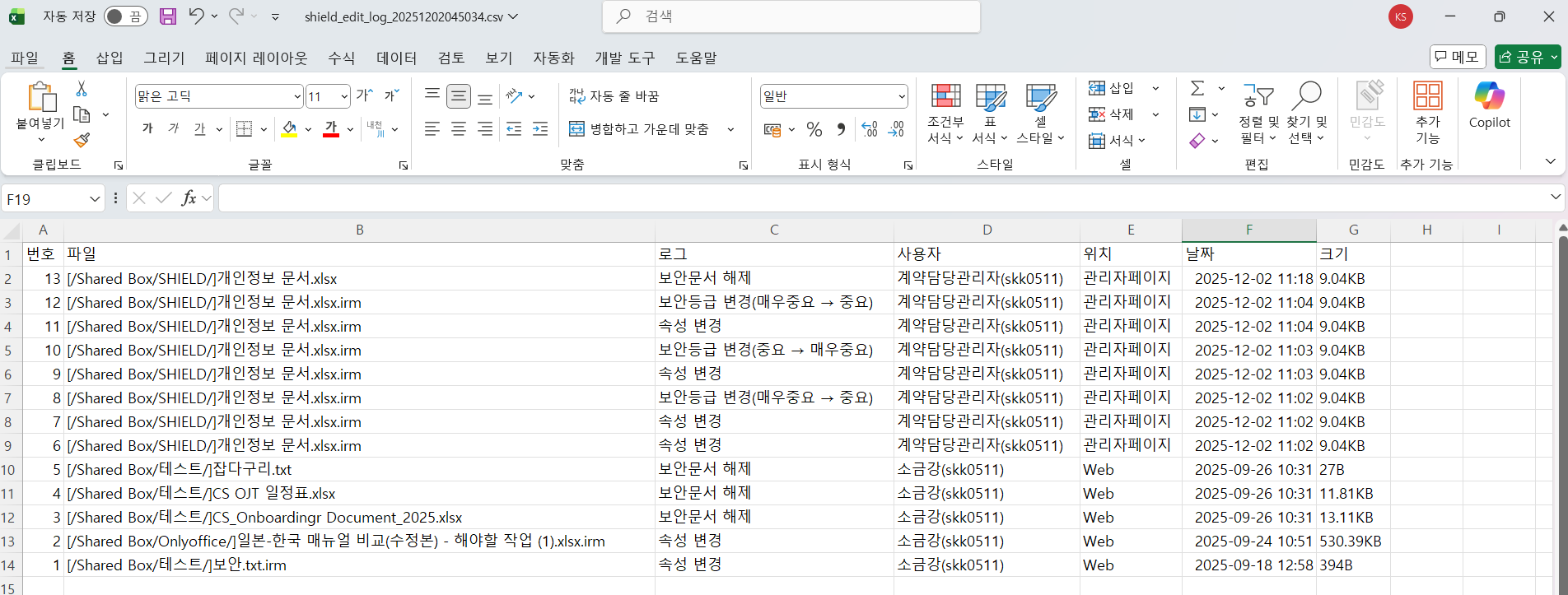
2. CSV 파일을 열어 문제가 없이 표시되는지 확인합니다.

<figure><img src="/files/BZFmyBeNcSIEobhh8ne0" alt=""><figcaption></figcaption></figure>


---

# Agent Instructions: Querying This Documentation

If you need additional information that is not directly available in this page, you can query the documentation dynamically by asking a question.

Perform an HTTP GET request on the current page URL with the `ask` query parameter:

```
GET https://help.directcloud.net/admin_manual/directcloud-shield-irm/security_change_history.md?ask=<question>
```

The question should be specific, self-contained, and written in natural language.
The response will contain a direct answer to the question and relevant excerpts and sources from the documentation.

Use this mechanism when the answer is not explicitly present in the current page, you need clarification or additional context, or you want to retrieve related documentation sections.